
FreeConvert.ai LogoFreeConvert.ai
Productivity8 min read

Batch File Conversion: Save Hours with Automated Workflows

Stop converting files one by one. Learn how to set up batch conversion workflows that process hundreds of files while you focus on more important work.

JL

Jennifer Liu

Productivity Consultant

Batch File Conversion: Save Hours with Automated Workflows

Introduction

If you've ever spent an afternoon converting files one at a time, you know the pain. Batch conversion automates this tedious process, letting you convert hundreds or thousands of files with a single action.

What is Batch Conversion?

Batch conversion is the process of converting multiple files at once using the same settings. Instead of:

  • Open file
  • Choose output format
  • Adjust settings
  • Convert
  • Repeat 100 times...

    You simply:

  • Select all files
  • Choose settings once
  • Convert all at once
  • Done!

    When to Use Batch Conversion

    Common Scenarios:

  • Converting a photo album from HEIC to JPG
  • Transforming video files for web upload
  • Converting document archives to PDF
  • Standardizing audio file formats
  • Preparing images for a website

    Time Savings Example: Files Manual (2 min each) Batch |-------|---------------------|-------| 10 20 minutes 2 minutes 50 1 hour 40 min 5 minutes 200 6 hours 40 min 15 minutes 1000 33+ hours 1 hour

    Setting Up Effective Batch Workflows

    Step 1: Organize Your Files Create a clear folder structure: `` /To-Convert/ /Images/ /Videos/ /Documents/ /Converted/ /Images/ /Videos/ /Documents/ `

    Step 2: Define Your Settings Determine the optimal settings for your batch:

  • Output format
  • Quality level
  • Resolution (for images/video)
  • Naming convention

    Step 3: Test with Sample Files Before processing thousands of files:

  • Select 3-5 representative files
  • Run the conversion
  • Check quality and settings
  • Adjust if needed

    Step 4: Process and Verify

  • Run the full batch
  • Spot-check results
  • Keep originals until verified

    Best Practices for Batch Conversion

    File Naming Strategies

    Option 1: Keep Original Names vacation_photo.heic → vacation_photo.jpg

    Option 2: Sequential Numbering photo_001.jpg, photo_002.jpg, ...

    Option 3: Date-Based 2024-01-15_photo1.jpg, 2024-01-15_photo2.jpg

    Option 4: Descriptive Prefix/Suffix vacation_photo_web.jpg, vacation_photo_print.jpg`

    Quality Presets

    Create presets for common use cases:

    Web Images

  • Format: WebP or JPG
  • Quality: 80%
  • Max width: 1920px
  • Size target: Under 500KB

    Print Images

  • Format: TIFF or PNG
  • Quality: 100%
  • Resolution: 300 DPI
  • Color profile: CMYK

    Social Media Video

  • Format: MP4
  • Resolution: 1080p
  • Bitrate: 8-12 Mbps
  • Audio: AAC 256kbps

    Podcast Audio

  • Format: MP3
  • Bitrate: 192 kbps
  • Channels: Stereo
  • Sample rate: 44.1 kHz

    Handling Errors in Batch Processing

    Common Issues:

    Corrupted Files

  • Set up error logging
  • Don't stop entire batch for one error
  • Review error files separately

    Format Mismatches

  • Filter files by type before conversion
  • Use wildcards carefully
  • Verify source format support

    Insufficient Space

  • Calculate space needed before starting
  • Monitor disk space during conversion
  • Process in smaller batches if limited

    Recovery Strategies:

  • Keep source files until batch completes successfully
  • Log all conversions for tracking
  • Implement checkpoints for large batches
  • Use incremental processing for huge archives

    Advanced Batch Techniques

    Conditional Processing Apply different settings based on:

  • File size (compress large files more)
  • Dimensions (resize only if oversized)
  • Date (archive older files differently)

    Multi-Format Output Convert to multiple formats simultaneously:

  • HEIC → JPG (for sharing) + PNG (for editing)
  • Video → MP4 (web) + WebM (backup)

    Metadata Handling

  • Preserve important metadata
  • Strip sensitive information
  • Add consistent metadata across files

    FreeConvert.ai Batch Features

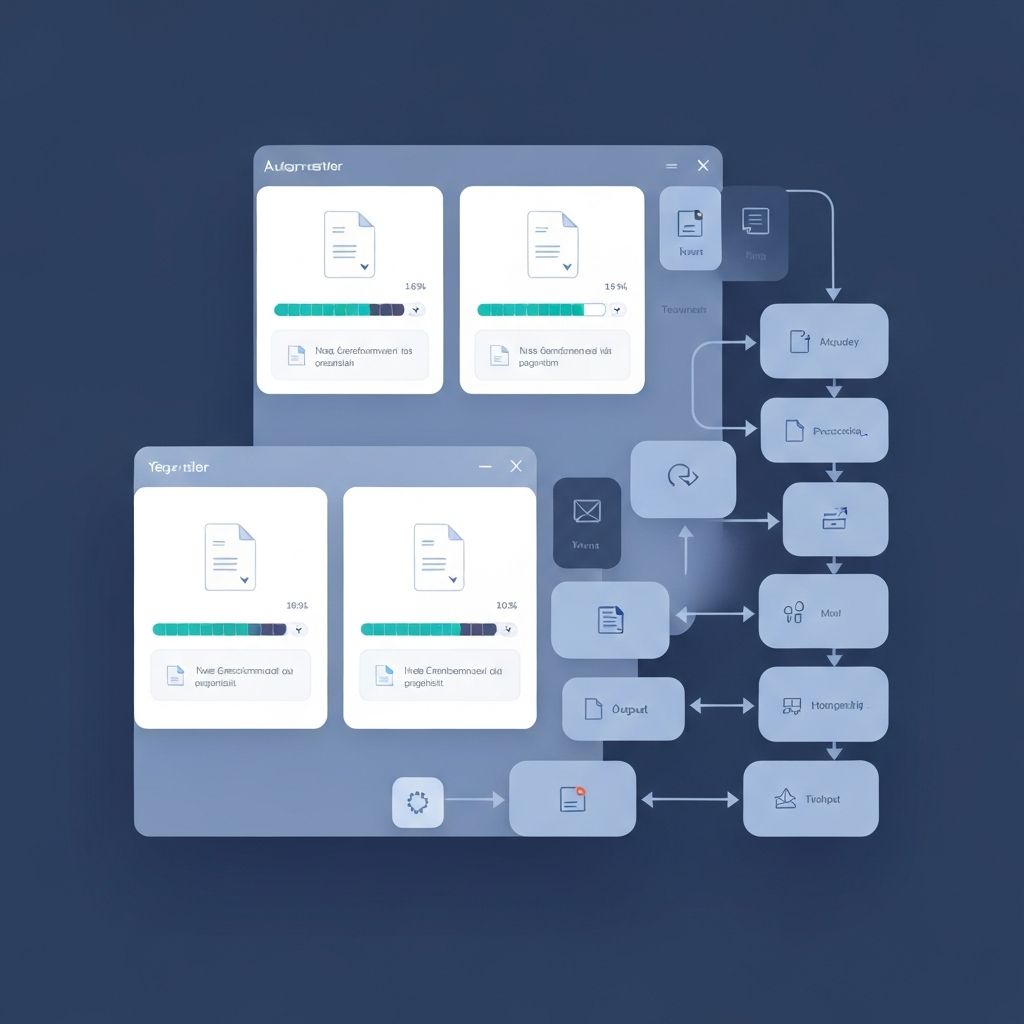
    Our platform makes batch conversion simple:

  • Drag and drop multiple files
  • Consistent settings across all files
  • Progress tracking for each file
  • Automatic error handling
  • Download all as ZIP

    How to Batch Convert:

  • Click "Choose Files" or drag files to upload area
  • Select all files you want to convert
  • Choose output format and settings
  • Click "Convert All"
  • Download individually or as ZIP

    Workflow Automation Tips

    For Regular Tasks:

  • Document your settings
  • Create naming conventions
  • Set up folder structures
  • Schedule regular conversion sessions

    For One-Time Projects:

  • Estimate total time needed
  • Break into manageable batches
  • Set up progress checkpoints
  • Plan for quality review

    Conclusion

    Batch conversion is a productivity superpower. What once took hours now takes minutes. Set up your workflows, define your presets, and let automation handle the repetitive work while you focus on what matters.

  • batch conversionautomationproductivityworkflowfile management
    JL

    Jennifer Liu

    Productivity Consultant

    Expert contributor at FreeConvert.ai, sharing insights on file conversion, digital workflows, and productivity optimization.

    Related Articles