Introduction
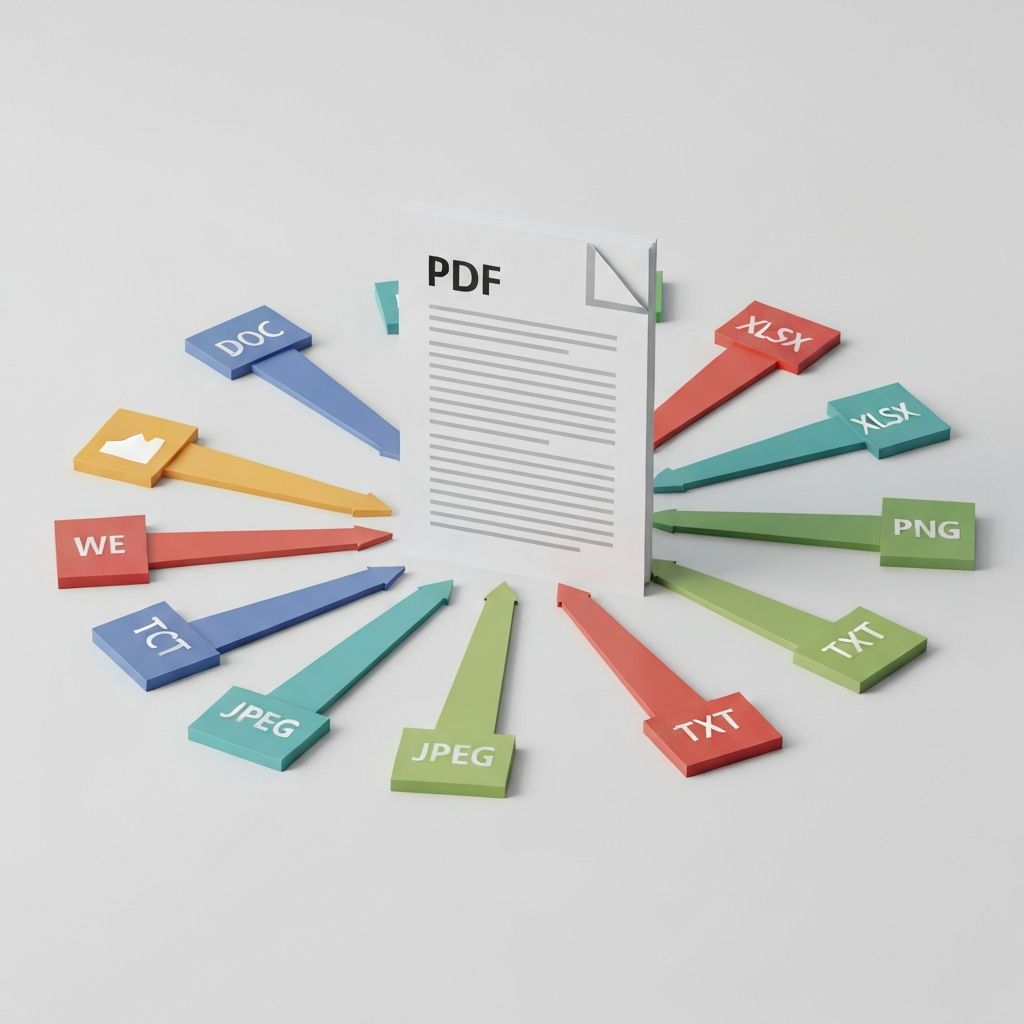
Document conversions are a daily reality for professionals, students, and anyone who works with digital files. Whether you're converting a contract to PDF for signing, extracting text from a PDF for editing, or turning a presentation into a shareable document, understanding the nuances of document conversion can save you hours of frustration.
This comprehensive cheat sheet covers everything you need to know about converting between the most common document formats.
Understanding Document Formats
PDF (Portable Document Format)
Purpose: Universal viewing and printing
Created by: Adobe (1993)
Characteristics:
Looks identical on every deviceCan contain text, images, forms, signaturesDifficult to edit without special softwareIndustry standard for official documentsBest for:
Contracts and legal documentsForms and applicationsFinished documents for distributionPrinting materials
DOCX (Microsoft Word Document)
Purpose: Document creation and editing
Created by: Microsoft (2007)
Characteristics:
Fully editableSupports complex formattingTrack changes and commentsCollaborative editing featuresBest for:
Writing and editing documentsCollaborationDocuments that need revisionTemplates and mail merge
TXT (Plain Text)
Purpose: Simple, universal text
Created by: Original computer standard
Characteristics:
No formatting whatsoeverWorks on any systemSmallest file sizeHuman and machine readableBest for:
Code and scriptsConfiguration filesData interchangeWhen formatting doesn't matter
PPTX (PowerPoint Presentation)
Purpose: Presentations and slideshows
Created by: Microsoft (2007)
Characteristics:
Slide-based formatSupports animations and transitionsSpeaker notes includedEmbedded media supportBest for:
Business presentationsEducational materialsPitch decksVisual storytelling
ODT (Open Document Text)
Purpose: Open standard word processing
Created by: OASIS (2005)
Characteristics:
Open source formatSimilar capabilities to DOCXLibreOffice native formatNo vendor lock-inBest for:
Open source workflowsGovernment documents (in some regions)Long-term archivingCross-platform compatibility
PDF Conversions
PDF to Word (DOCX)
When to use:
Need to edit document contentWant to update an old PDFExtracting text for repurposingFilling in a form that's not fillableChallenges:
Complex layouts may not convert perfectlyTables can become misalignedHeaders/footers may cause issuesFonts might substituteBest practices:
Use high-quality source PDFsChoose "Retain layout" option when availableReview and fix tables manuallyCheck font substitutionsClean up extra spaces and line breaksQuality expectations:
Simple documents: 90-95% accuracyComplex layouts: 70-85% accuracyScanned documents: Requires OCR first
PDF to TXT
When to use:
Extracting raw text contentPreparing text for analysisRemoving all formattingProcessing with scriptsChallenges:
All formatting is lostImages are not extractedTables become plain textReading order may varyBest practices:
Review text flow after conversionClean up line breaksUse for text-heavy documents onlyConsider PDF to Word for better structure
PDF to PPTX
When to use:
Turning a document into slidesRepurposing PDF content for presentationsExtracting graphics from PDFChallenges:
Each PDF page becomes one slideText extraction may varyGraphics quality depends on sourceAnimations cannot be recreatedBest practices:
Works best with slide-like PDFsPlan to redesign for presentationExtract images separately if neededConsider manual recreation for quality
PDF to Images (JPG/PNG)
When to use:
Sharing on social mediaEmbedding in websitesCreating thumbnailsArchiving visual contentSettings to consider:
Resolution: 150 DPI for screen, 300 DPI for printFormat: JPG for photos, PNG for graphicsColor mode: RGB for screen, CMYK for print
Word (DOCX) Conversions
Word to PDF
When to use:
Sharing finished documentsPreserving formattingCreating printable filesOfficial document distributionWhy this works well:
PDF preserves Word formatting exactlyFonts can be embeddedLayout remains consistentUniversal readabilityBest practices:
Embed fonts before convertingCheck page breaksVerify hyperlinks workTest on different PDF viewers
Word to TXT
When to use:
Extracting plain textPreparing for data processingRemoving formatting completelyCreating universal text filesWhat you lose:
All text formattingImages and graphicsTables and columnsHeaders and footers
Word to PDF Form
When to use:
Creating fillable PDF formsDocument workflowsInteractive documentsProcess:
Design form in Word with content controlsConvert to PDF with form supportTest form fieldsAdd signature fields if needed
PowerPoint (PPTX) Conversions
PowerPoint to PDF
When to use:
Sharing presentations as documentsCreating handoutsArchiving presentationsSending to non-PowerPoint usersOptions:
Full slidesHandout format (multiple slides per page)Notes pagesOutline onlyBest practices:
Check slide animations (they won't convert)Verify embedded videos are not neededChoose appropriate layoutInclude notes if relevant
PowerPoint to Video
When to use:
Self-running presentationsSocial media contentTraining videosWebinar recordingsSettings:
Resolution: 1080p recommendedFrame rate: Use slide timingFormat: MP4 for compatibility
PowerPoint to Images
When to use:
Social media slidesWeb contentThumbnail creationPrint materialsRecommendations:
Export as PNG for qualityUse high resolutionExport selected slides as needed
OCR: Converting Scanned Documents
What is OCR?
Optical Character Recognition (OCR) converts images of text into actual editable text.
When you need OCR:
Scanned paper documentsPDF images (not searchable PDFs)Screenshots of textPhotos of documents
OCR Best Practices
For best results:
Use high-quality scans: 300 DPI minimumEnsure good contrast: Black text on white backgroundStraighten images: Skewed text reduces accuracyClean sources: Remove stains, marks, shadowsCheck the language: Set correct language for recognitionAccuracy expectations:
Clean, typed documents: 95-99%Handwritten text: 70-90%Poor quality scans: 60-80%Mixed content: Varies
Post-OCR Cleanup
After OCR, always:
Proofread carefullyCheck numbers and special charactersFix formatting issuesVerify table structureCorrect recognition errors
Formatting Preservation Tips
Fonts
Problem: Converted documents show wrong fonts
Solutions:
Embed fonts in source documentUse common fonts (Arial, Times New Roman)Convert fonts to outlines (for PDFs)Accept substitution and reformat
Tables
Problem: Tables become misaligned after conversion
Solutions:
Keep tables simpleAvoid merged cellsConvert tables to images if necessaryRebuild tables after conversion
Images
Problem: Image quality degrades
Solutions:
Use high-resolution source imagesConvert to lossless format firstCheck compression settingsExtract images separately if needed
Page Layouts
Problem: Multi-column layouts become scrambled
Solutions:
Convert columns to sectionsUse simpler layouts when possibleAccept manual cleanupConsider image export for exact preservation
Quick Reference Conversion Chart
| From |
To | Quality |
Difficulty | Common Issues |
|------|-----|---------|------------|---------------|
| PDF |
DOCX | Good |
Medium | Table formatting |
| PDF |
TXT | Basic |
Easy | Loses all formatting |
| PDF |
PPTX | Fair |
Medium | Layout adaptation |
| PDF |
JPG/PNG | Excellent |
Easy | Resolution choice |
| DOCX |
PDF | Excellent |
Easy | Font embedding |
| DOCX |
TXT | Basic |
Easy | Loses formatting |
| DOCX |
ODT | Good |
Easy | Minor differences |
| PPTX |
PDF | Good |
Easy | Loses animations |
| PPTX |
Video | Good |
Medium | Timing setup |
| Scanned |
Text | Variable |
Medium | OCR accuracy |
Accessibility Considerations
Why Accessibility Matters
- Legal requirements (ADA, WCAG)
Wider audience reachBetter SEOEthical responsibility
Accessible Document Conversions
Checklist:
[ ] Ensure text is actual text (not images)[ ] Add alt text to images[ ] Use proper heading structure[ ] Include table headers[ ] Check color contrast[ ] Test with screen readers
PDF Accessibility
When converting to PDF:
Use tagged PDF optionSet document languageAdd bookmarks for navigationEnsure reading order is logical
Workflow Automation
Batch Conversion
For large numbers of documents:
Organize files by conversion typeUse consistent naming conventionsSet up folder watchingCreate quality control checkpoints
Integration Tips
Cloud storage:
Convert on uploadSync converted filesMaintain folder structureDocument management:
Automate routine conversionsIndex converted textTrack versions
Conclusion
Document conversion doesn't have to be frustrating. With the right understanding of formats, proper settings, and realistic expectations, you can convert documents efficiently while preserving what matters most.
Key takeaways:
Choose the right format for your purposeExpect some cleanup after complex conversionsUse OCR for scanned documentsAlways keep your source filesTest conversions before batch processingFreeConvert.ai makes document conversion simple with automatic optimization and quality preservation. Try our free tools for all your PDF, Word, PowerPoint, and text conversion needs.